
This guide covers Qliro-specific configuration when connecting Qliro to Fortnox via Junipeer. Before reading this, make sure you have worked through the universal PSP setup guide — it covers all the foundational steps that apply to every payment provider integration:
**Connecting payment services to Junipeer →**
The steps in that guide (flow selection, credentials, OSS mapping, settlement account mapping, webhook activation) all apply here. This article only documents what is specific to Qliro and Fortnox.
Credentials
To connect Qliro to Junipeer, you need your Qliro API credentials. Contact your Qliro account manager to obtain these if you don't already have them.
Qliro-Fortnox specific settings
Payout reference fields
When sending payouts, we're trying to match their IDs with the references exposed on the invoice fields. Usually, Fortnox's ExternalInvoiceReference fields are used for that. To configure this operation, go to Configure -> Settings -> General Settings -> Payout Reference Field.
The for testing the connector, we recommend this setup:
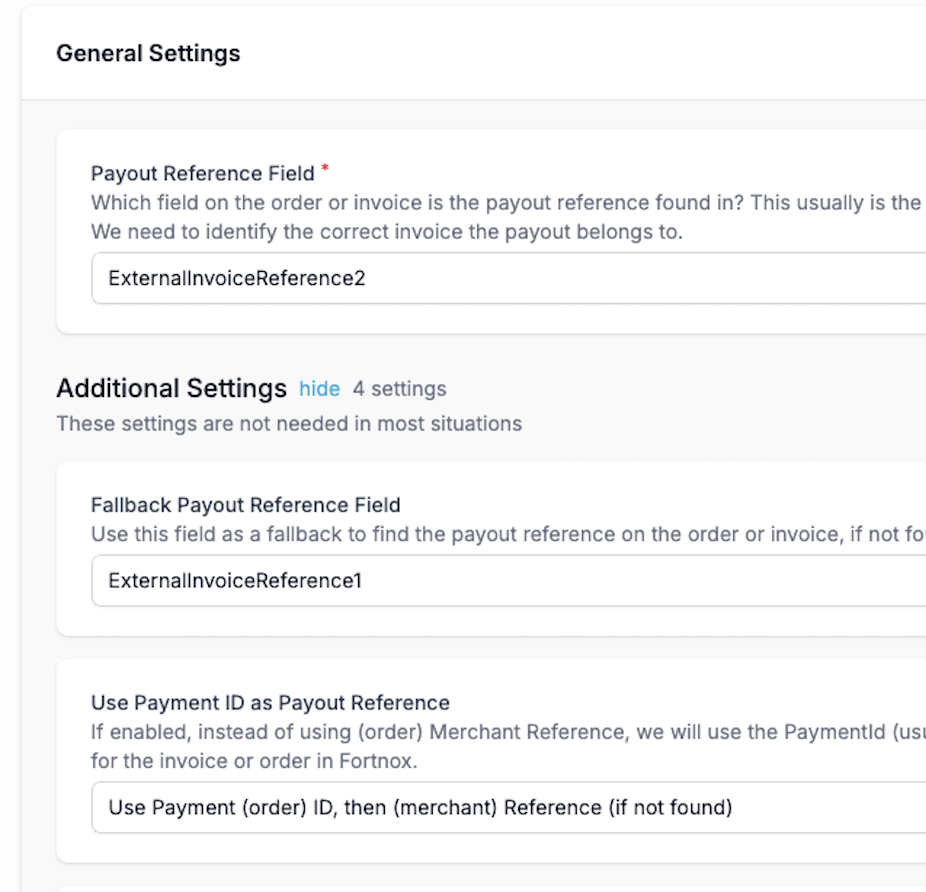
Make sure to adjust if you're relying on different fields in Fortnox.
Use merchant reference from Checkout
If you're relying on an external system to produce orders* (like for example, a Shopify -> Fortnox connector), please make sure to tick the following checkbox in Configure -> Settings -> Identify Order Settings:

If you're not relying on an external order management, please make sure to activate the Orders and Order Statuses flows for the Qliro -> Fortnox connector.
Payment Reference Prefix
If set, this prefix will be added to all payment references sent from Junipeer to Fortnox.
For example, if your prefix is QLIRO-, a payment reference of 12345 will appear in Fortnox as QLIRO-12345.
This is useful when you have multiple payment providers connected to the same Fortnox account and want to distinguish Qliro transactions at a glance. Leave it empty if you do not need this distinction.
Refunds
Creating credit invoices (refunds) in Fortnox via Qliro requires Qliro API Plus credentials — standard API credentials are not sufficient for this operation.
If refunds are failing or credit invoices are not being created, the first thing to check is whether your API Plus credentials are correctly configured. In Junipeer, navigate to your Qliro connector settings and review the keys under PLUS settings.
If you do not have API Plus credentials, contact your Qliro account manager to get them enabled on your account.
Updating order status
For Junipeer to update the order status in Qliro (e.g. marking an order as shipped), Qliro must be configured as a payment method in Fortnox — not a generic payment type like fak (Faktura).
This is a common misconfiguration. If Qliro is not set up as its own payment method in Fortnox, Junipeer cannot send status updates back to Qliro's Merchant Center. The order will be processed and invoiced correctly in Fortnox, but Qliro will show the order as "Ej skickad" (not shipped) indefinitely — because the status update signal never reaches Qliro.
Symptom: Order is marked as "levererad och fakturerad" in Fortnox but remains "Ej skickad" in Qliro Merchant Center.
Cause: The payment method in Fortnox is set to fak or another generic value instead of Qliro.
Fix: In Fortnox, ensure that Qliro is configured as a dedicated payment method. Once corrected, re-trigger the status update from Junipeer.
Go-live
As with all PSP integrations, Qliro goes live through webhook activation, not the Start syncing button. Once your configuration is complete, contact your Junipeer onboarding contact to review the setup and activate the webhooks.
For troubleshooting, see the Error Codes reference or contact support@junipeer.io.