
This guide is for shop and finance staff who expect an order in Fortnox and cannot find it. Work through the checks in order: most missing orders are explained by the first three, and often the integration is doing exactly what its settings tell it to.
The checks apply to every webshop connected to Fortnox (Shopify, WooCommerce, Centra, Magento and others). Setting names differ a little per webshop; where they do, the examples below give the exact title the app shows.
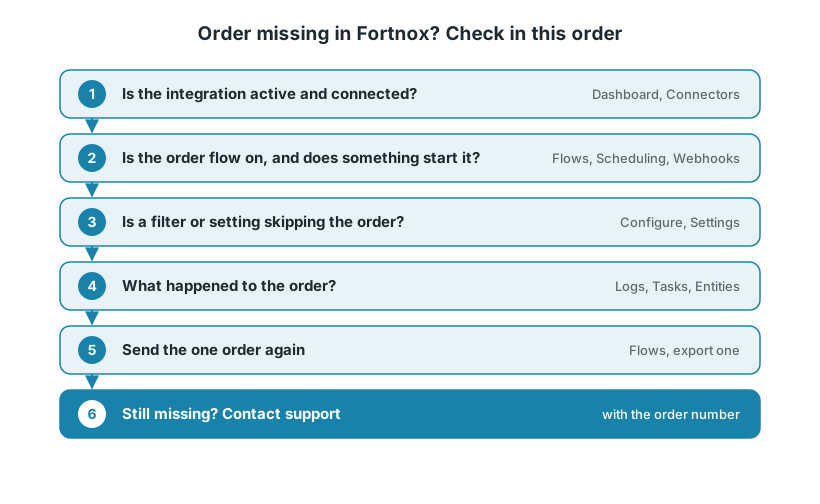
Before you start
Have the order at hand: its order number, the date it was placed and its status in the webshop. Look in Fortnox first — Junipeer creates the order with the original order date, so an order placed a few days ago may simply not be at the top of the list.
1. Is the integration active and connected?
If no orders are arriving, start here.
Open the integration and check that it is active.
On the Connectors page, check that both the webshop and Fortnox show as Connected. A connection that has expired or been revoked stops every sync at once. In the logs this often shows as "Invalid grant". Reconnect the system to fix it.
Fortnox uses the permissions of the user who connected it. If that user's licenses or permissions have been changed or removed, orders stop arriving. See Prepare Fortnox for integration for what the user needs.
If everything stopped at the same moment, an expired connection is the most likely cause. If only some orders are missing, go on to the next checks.
2. Is the order flow turned on, and does something start it?
Orders are sent by the flow Export Orders to Fortnox. A flow only runs when something starts it: a schedule, a trigger after another flow, or a webhook from the webshop.
On the Flows page, check that Export Orders to Fortnox is enabled. A schedule on a disabled flow does nothing.
Check that the flow has an enabled scheduling rule, or that it is driven by webhooks. For example, Shopify orders are normally picked up by webhook when they are created or updated. If neither a schedule nor a webhook is in place, nothing is wrong with the order — the flow simply never runs.
Remember the timing. An order placed after the last run arrives with the next run. The shortest schedule is every 5 minutes.
3. Is a filter or setting skipping the order on purpose?
This is the most common reason for "some orders are missing". A filter that excludes a status, a country or a date range does it silently: the order is not an error, it is just not picked up. Open the settings for Export Orders to Fortnox and check each of these.
What to check | Setting title in the app | What it does |
|---|---|---|
Order status | Shopify Order Statuses, Woocommerce Order Statuses, Magento Order Statuses | Only orders with one of the selected statuses are sent. An order that has not reached that status yet is not sent. |
Countries | Countries to Ignore | Orders from the selected countries are not sent to Fortnox. Empty means all countries are sent. |
Order type | Orders types to Ignore | Orders of the selected type (B2B or B2C) are not sent. Empty means all orders are sent. |
Old orders | Exclude Orders created before this date (for example WooCommerce and Magento) or Order exclusion date | Orders created before the date are never synced. |
Not every webshop has all of these settings — you only see the ones your integration has. Click the ? next to a setting for details.
Flow filters. Many order flows also have filters on the flow itself (the gear icon on the flow, then Source → Filters). These can limit orders by, for example, Order Status, Country, Delivery Country, Currency Code or Order Date. For Centra, filters can also limit by Store and Market, and the filters replace the older Centra settings Order Statuses to import and Only load orders newer than. A status filter that leaves out the status your orders actually have is the most common cause of "it suddenly stopped working".
Things to watch for:
Exact spelling. Status values must match the webshop exactly, including upper and lower case. For Magento, for example, processing is not the same as Processing.
Status changes. If your shop changed how it uses statuses — or added a new one — the filter may no longer match.
The exclusion date is a hard cut-off. Moving the sync start date back does not bring in orders from before the exclusion date.
The order is in Fortnox, but there is no invoice
If Transform new orders to Invoice in Fortnox is on, two settings can keep an order as an order:
Transform Only Paid Orders – unpaid orders stay as orders. Orders paid later can be turned into invoices by the flow Transform Fortnox orders to Invoices.
Transform Only B2B orders – only business orders become invoices.
4. Look up what happened in the app
If the integration is connected, the flow runs and no filter explains it, look at the record itself.
Entities – choose Orders and search for the order. If it is there, you see its sync status and when it was processed. If it failed, the failure is shown in the list.
Logs – filter by status Error and a recent time window, or search for the order's reference. An error entry tells you which step failed and why.
Tasks – shows each run of the flow and its result. A run that is Completed but processed 0 orders usually means a filter excluded everything, or the sync start date has moved past the orders.
If there is no log entry and no entity for the order at all, Junipeer never picked it up. Go back to step 3, and check that the order was created after the exclusion date.
Common errors that stop an order in Fortnox:
Message in the log | What it usually means |
|---|---|
"Kunde inte hämta/hitta valuta" | The order's currency is not added in Fortnox. |
"Kunde inte hämta/hitta moms" | The VAT rate on the order does not exist in Fortnox. |
"Invalid grant" | The connection has expired. Reconnect it. |
"Order with ID X not found" | The order could not be found in the webshop — it may have been deleted, or the connection lacks access to it. |
If an order row contains an article that does not exist in Fortnox, the setting Create missing articles in Fortnox decides whether the integration creates it. See the Error codes reference for more messages and how to fix them.
5. Send one order again
When you have found and fixed the cause, send the order again with Export One on the Flows page, using the flow Export one Order to Fortnox.
Check in Fortnox, and on the References page, that the order really is missing. Sending an order that is already there can create a duplicate.
Enter the order. Each webshop asks for its own identifier — for example, Shopify asks for the Order ID, and WooCommerce accepts an Order ID or Number.
Run it, then check the Tasks and Logs pages and the order in Fortnox.
Good to know:
Changing a setting only affects orders processed from then on. Orders that were already skipped or failed stay that way until you send them again.
If a correction was made in the webshop but the order still fails with the old data, use Clear Cache on the Configure > Settings page, then try again.
To bring in several orders from a period, the sync start date on the Time History page can be moved back. Start with a short period and check the result first.
6. When to contact support
Contact support@junipeer.io if the order still does not arrive, the same error keeps coming back, or a filter looks right but orders are still skipped. Include:
The order number(s) and, if you have it, the task ID from the Logs or Tasks page
What you expected and what happened instead
The checks you have already done and any recent changes to settings