
When an order has status Error, fix what stopped it and then send it again yourself. That is the fastest way to get it into Fortnox or your other system. If it still fails, contact support.
If you haven't found the order yet, start with How do I find my order.
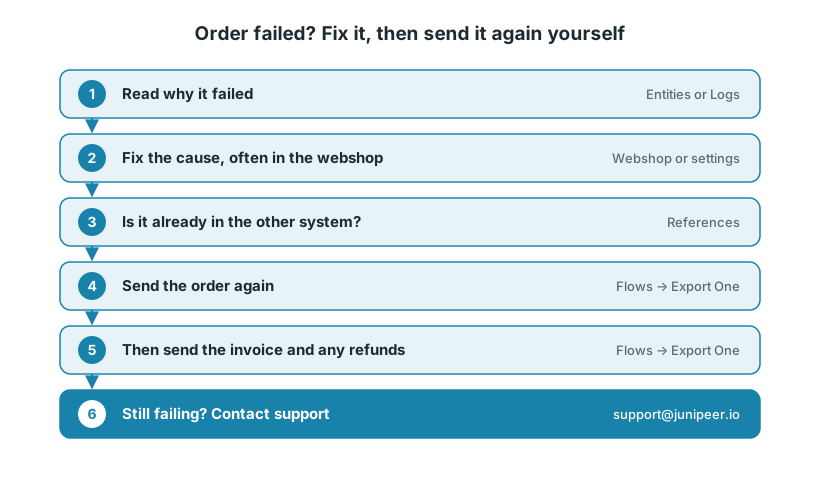
1. Find out why it failed
Open the order on Entities (choose Orders), or filter Logs on Error. The error tells you what went wrong. Common examples:
What happened | Example message in the log | What to do |
|---|---|---|
The other system was busy for a moment | "… a record in table 'Sales Header' is being updated …" (Business Central) | Nothing to fix. Send it again. |
A value is too long | "The length of the string is 35, but it must be less than or equal to 30" (Business Central) | Shorten the value in the webshop, often an address line. |
The address was rejected | "Invalid shipping state" (Visma.net) | Add the missing region or state on the order in the webshop. |
The customer could not be created | "could not get a fortnox customer for order …" | Check the customer details on the order in the webshop. If they look right, it may have been a short error at Fortnox: send it again. |
The connection was lost | "invalid_grant" | Reconnect first. See Connection lost. |
For other messages, see the Error codes reference.
2. Send the order again
Fix the cause in the webshop or in the settings. If you send it without a fix, it fails the same way.
Check that it isn't already there. Look in the other system and on the References page. Sending an order that is already there can create a duplicate, for example if someone entered it by hand.
Send it. On the Flows page, use Export One on the order flow, for example Export Orders to Fortnox or Export Orders to Business Central. For Shopify, enter the Order ID, for example 5296383230249.
Check the result on the Tasks and Logs pages, and in the other system.
If you corrected the order in the webshop but it still fails with the old data, click Clear Cache on Configure > Settings and try again.
3. Then the invoice and any refunds
If you invoice through Junipeer, the invoice is a separate step. Always send the order first.
Fortnox: use Export One on Transform Fortnox orders to Invoices, with the same Order ID.
Business Central: use Export One on Transform Orders to Invoices in Business Central.
A refund needs an invoice to credit. With Shopify and Fortnox, if the customer was refunded while the invoice was missing, the refund failed too, for example with "Could not find the invoice id that is created in Fortnox for the Shopify refund".
Make sure the order and its invoice are now in Fortnox.
On Entities, open Refunds and filter the status on error.
Use Export One on Export Refunds to Fortnox. Enter the Order ID, and the Refund ID if the order has more than one refund.
Today Junipeer creates one credit invoice per invoice. See Refunds and returns in Fortnox for the details.
4. Many orders at once
When many orders failed in the same period, for example during an outage:
List them. On Entities, choose Orders and look for status Error, or filter Logs on Error and the time of the problem.
Leave out orders you handled by hand in the other system, and orders that were cancelled.
Send the rest. Use Export Many on the order flow, or move the last loaded date on Time History back to just before the problem started. Start with a short period and check the result.
Then the invoices, the same way, after the orders.
For Shopify and Fortnox, Export Many has an Order IDs field. Enter up to 250 Shopify order IDs separated by commas; the date is then ignored. See Can I sync historical data or resend data?
Colleagues who follow up on orders can have their own login. See Your Junipeer account and billing.
5. When to contact support
Contact support@junipeer.io if the order still fails after you fixed the cause and sent it again, or if many orders are affected and you aren't sure which. Include:
The order numbers, and a task ID from the Logs or Tasks page
What you already tried
Any orders you handled by hand in the other system