
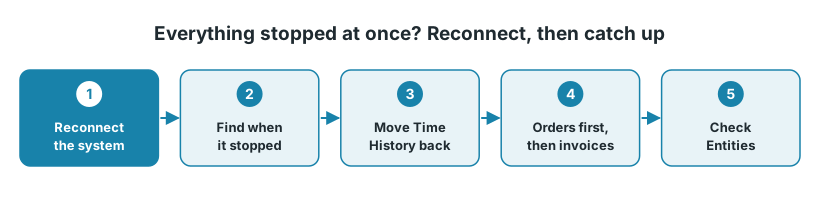
If nothing reaches Fortnox, Business Central or another system any more, and it all stopped at the same moment, Junipeer has most likely lost its connection to that system. Log in to the system again from Junipeer, then send what was missed while it was down.
1. How to recognise it
Everything stops at once. No new orders, invoices, refunds or stock updates.
Logs fill with errors. Filter Logs on Error: every run of every flow that uses the system fails.
The Dashboard shows a jump in stopped tasks, from almost none to almost all.
Message in the log | What it means |
|---|---|
"invalid_grant" or "Invalid refresh token" | The login Junipeer uses for the system has expired or been revoked. Reconnect the system. |
"Ej autentiserad" (Fortnox) | Fortnox did not accept the login. This can be a short problem at Fortnox that clears by itself. If it doesn't, contact support. |
"Du saknar behörighet …" (Fortnox) | The Fortnox user who connected the integration doesn't have the permission or licence for that part of Fortnox, for example invoices. See the note below. |
The integration can still say Active. That only means it is switched on. On the integration's Connectors page, the system that lost its connection no longer shows as connected.
If only some orders are missing and others still arrive, the connection is fine. See Orders not showing up in Fortnox instead.
2. Reconnect the system
Open the integration and go to Get Started → Connect Systems.
Click the button for the system, for example Connect to Fortnox or Connect to Business Central.
Log in to the system. For Fortnox, log in as your integration user. For Business Central, use a Microsoft account with access to Business Central, and pick the right environment and company if you are asked.
Check that the system shows as connected again.
Your settings and flows are kept. If you manage several Fortnox companies, make sure you log in to the right one. If you have more than one integration with the same system, check each of them.
3. Send what was missed
Orders and invoices from the time the connection was down may still need to be sent.
Find when it stopped. On Logs, filter on Error and find the first "invalid_grant" or permission error. Log times are in UTC.
Move Time History back. Open Time History. If the order flow's last loaded date is later than that moment, click Change and set it to just before. Do the same for the other flows that stopped.
Orders first, then invoices. Let Export Orders to Fortnox run first, then Transform Fortnox orders to Invoices if you use it. With Business Central, first Export Orders to Business Central, then Transform Orders to Invoices in Business Central.
Check the result. On Entities, choose Orders and look for status Error.
Good to know:
Orders that already have a reference in Junipeer are updated, not duplicated. If someone entered orders by hand in the other system during the outage, check the References page before you send those orders.
An order that failed for another reason, for example a missing address field, needs its own fix. See An order failed: how to send it again.
4. Notice it sooner next time
Use the Junipeer MCP to keep an eye on your integrations. It connects your AI assistant, for example Claude or ChatGPT, to Junipeer, so you can ask in your own words:
"Which integrations do I have, and are they all running?"
"Show me the errors from last night's order sync and explain them simply."
If a system needs a new login, the assistant gives you the link and you log in yourself. The Junipeer MCP is an add-on. See Use Junipeer with your AI assistant.
You can also check the Dashboard and Logs (filtered on Error) now and then.
5. When to contact support
Contact support@junipeer.io if the system doesn't show as connected after you log in, or if the same errors continue. Include:
The name of the integration and roughly when it stopped
A task ID from the Tasks or Logs page
What you have already done