
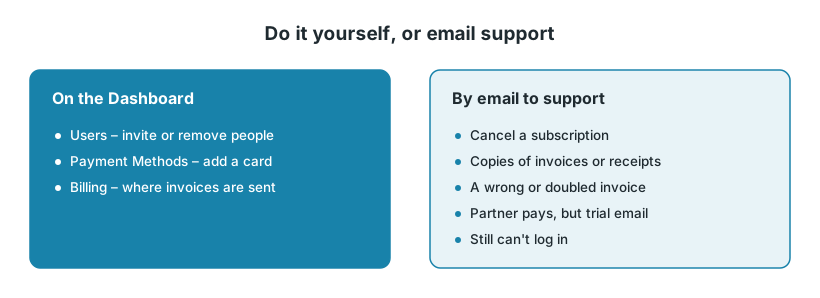
You manage your own Junipeer account on the Dashboard, the page you see after you log in. Cancelling and questions about an invoice go by email to support@junipeer.io.
This guide is about what you pay Junipeer. For the invoices Junipeer creates in your ERP for your own customers, see Bookkeeping.
1. Log in
Log in at app.junipeer.io with your email and password. Click Integrations and then your integration to get to Get Started, Flows, Logs and the other pages.
Forgot your password? Reset it from the login page. You get a link by email.
You see "My workspace" but no integrations? You have a login, but nobody has invited you to your company's workspace yet. Ask a colleague to invite you under Dashboard → Users.
Still can't log in? Clear your browser's cookies and cache and try again. If that doesn't help, email support with the email address you log in with.
2. Add or remove colleagues
Go to Dashboard → Users. Invite a colleague by email, or remove someone who no longer needs access. A new user can see every integration in your workspace. Give each person their own login.
3. How you pay
You pay per connector. For example, Shopify and Fortnox are two connectors, each with its own subscription. You see what you subscribe to under Dashboard → Connector Subscriptions.
You pay by card or by invoice:
By card | By invoice | |
|---|---|---|
How to start | Add a card under Dashboard → Payment Methods. It is charged every month. | You need a contract with Junipeer, normally for 12 months. |
Where documents go | Stripe emails your receipts. | Invoices from Junipeerio AB are emailed to the address under Dashboard → Billing. |
Changing that address | Change it in Junipeer or in Stripe, or ask support. | Change it under Dashboard → Billing, or ask support. |
Dashboard → Payment Methods is how you pay Junipeer. It has nothing to do with the Payment Methods settings inside an integration, which decide how your ERP books your customers' payments.
4. "Free trial about to end"
This email means the free trial on one of your connectors ends soon. To keep the integration running after the trial:
Log in at app.junipeer.io.
Go to Dashboard → Payment Methods and add a payment method.
The subscription starts automatically when the trial ends.
If the trial ends without a payment method, the integration stops running.
If a partner, for example Svea, pays for your integration and you get this email, contact support.
5. A missing or wrong invoice
Email support and include the invoice number.
Missing invoice or receipt: check your spam folder and the mailbox your invoices go to. Support can send copies.
The same invoice twice, or charged by card and also invoiced: the wrong one is credited.
Wrong company name or address: support credits the invoice and sends a new one with the right details.
Reminder for an invoice you have paid: send the invoice number and the date you paid.
6. Cancel
Cancel by email to support@junipeer.io. You can't cancel in the app. Write which connectors you want to cancel and the date you want the subscription to end. We confirm by email.
The notice period is 1 month, unless your contract says otherwise.
Turning off flows or no longer sending orders does not cancel the subscription.
Invoices for the time up to your end date still have to be paid.
7. When to contact support
Email support@junipeer.io and include:
the email address you log in with,
the invoice number, for questions about an invoice,
which connectors and which end date, if you want to cancel.
Never send your password.