
Stock goes one way: from your ERP to your webshop. Each run replaces the webshop's quantity with the ERP's, for the articles whose stock changed since the last run.
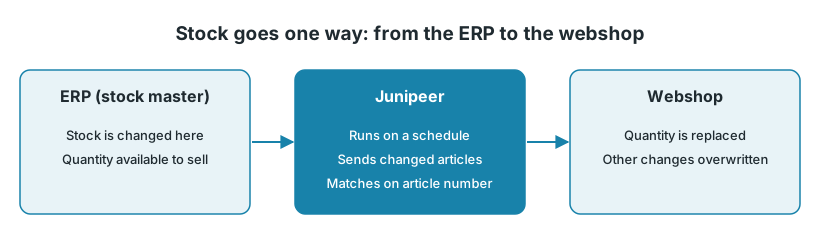
The stock flow is usually called Export Stocks to Shopify, Export Stocks to Centra or similar.
1. The ERP is the stock master
Stock is usually mastered in the ERP. Each run sets the webshop's quantity to what the ERP shows. It doesn't add or subtract.
So anything else that changes stock in the webshop is overwritten on the next run, for example:
stock adjusted by hand or imported from a file in the webshop
stock reserved by another app, such as a B2B portal
stock moved between locations in the webshop
Make these changes in the ERP instead. They then reach the webshop with the next run.
2. Which quantity and which warehouses?
Junipeer sends the quantity that is available to sell. In Shopify it is set as the available quantity, so you don't sell stock you don't have. Shopify's on hand also counts orders that aren't fulfilled yet, so it can look higher than the ERP until those orders are fulfilled.
By default, stock from all ERP warehouses is added together and sent as one number. To use only some warehouses, or to send stock per warehouse, turn on your integration's warehouse settings. Map Locations (Warehouses) connects each ERP warehouse to a webshop location. Click the ? next to a setting for details, or see Warehouse module for Stock (Fortnox) and Use Multi Stock (Business Central).
3. How often does it run?
Most stock flows run on a schedule, which you set under Configure > Scheduling. The shortest interval you can choose is every 5 minutes. If you need stock updated more often, contact support.
Each run only sends articles whose stock changed since the last run. The Time History page shows the date the next run starts from.
Between two runs, the webshop doesn't know about changes in the ERP. During a busy campaign, an item can be sold more times than you have it.
4. Send stock for all articles again
A normal run skips articles whose stock hasn't changed in the ERP. After one of these changes, send stock again for all articles:
products were deleted and re-created in the webshop
article numbers were fixed so they match between the systems
warehouse settings or mappings were changed
stock was changed by hand in the webshop
Open the Time History page and find the row for the stock flow.
Click Change and set the date back to before the affected articles last changed stock in the ERP. This can be several months back.
Wait for the next scheduled run, or start it now with Export Many on the Flows page.
Check the run on the Tasks page.
If a few articles are still missing afterwards, choose an earlier date.
5. Article numbers must match
Stock is matched on article number (SKU), not on EAN. An article whose number doesn't exist in the webshop gets no stock. Fix the number, then send stock again as in step 4.
For variants and sizes between Business Central and Centra, see Business Central — product variant mapping to Centra.
6. Check what was sent
Entities: choose Stock and search for the article number. The record shows the quantity Junipeer received from the ERP.
Logs: filter by Error to see which articles failed and why.
If Junipeer has the right quantity but the webshop shows something else, the difference comes from the webshop side. Check what else writes stock there.
When to contact support
Contact support@junipeer.io if articles still don't get stock after you sent all stock again, or if you need stock updated more often than every 5 minutes. Include a few article numbers, the warehouse or location, and the quantity you expected in each system.