
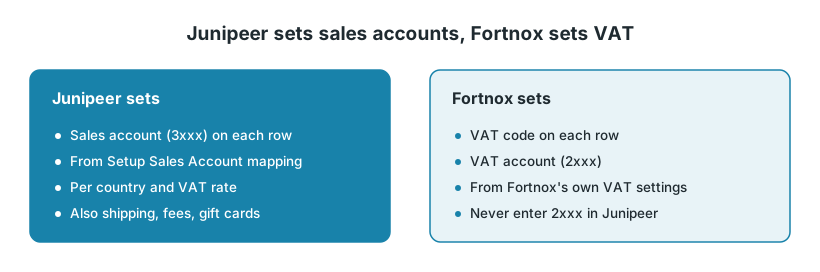
Junipeer sets the sales account (3xxx) on each row of the orders and invoices it creates in Fortnox. Fortnox adds the VAT code and VAT account (2xxx) itself, from its own settings. So in Junipeer you only enter sales accounts, never VAT accounts.
1. Which account is wrong?
The sales account (3xxx) is wrong. This is a setting in Junipeer. See step 2.
There is a 2xxx account where the sales account should be. A VAT account was entered in Junipeer. See step 3.
The sales account is right, but VAT is on the wrong VAT account (2xxx). This is a setting in Fortnox. Check the VAT setup in Fortnox. See Fortnox's guide Inställningar moms.
The VAT rate on each row (for example 25 %) comes from your webshop. If a row has the wrong rate, check the tax setup in the webshop.
2. Where to set the sales accounts
Go to Configure → Settings and open the section Sales Account mapping & OSS VAT.
Open Setup Sales Account mapping. The Default settings apply to all countries.
To use other accounts for a country, add a rule for that country.
Each rule has these fields:
Field | What it sets |
|---|---|
Default Account Number | The sales account for the rule. Leave it empty to use your normal Fortnox settings. |
Map Vat rates with Account numbers | A different sales account per VAT rate. It replaces Default Account Number for rows with that rate. |
Account Number for shipping | The sales account for shipping. Leave it empty and shipping gets the same account as the goods. |
Account Number for fees | The account for fee rows. It is also used on refunds. |
Account Number for credit vouchers (gift cards) | The account for gift card rows. |
Click the ? next to a setting in the app for more details. A change only affects orders processed from then on.
Shipping: only set Account Number for shipping if your accountant wants it. A fixed account is used on every shipping row, whatever the VAT rate of the goods.
3. Don't enter VAT accounts
This is the most common mistake. Map Vat rates with Account numbers sounds like a VAT setting, but it sets the sales account for rows with that VAT rate.
For example, a rule for France has Default Account Number 3056 and the row 20 → 2696. Every 20 % row, goods and shipping, then gets 2696 as its sales account.
To fix it, remove the 2xxx row, or replace it with the right 3xxx account. Fortnox then adds the VAT code and VAT account itself.
Orders already in Fortnox keep the account they got. A booked invoice can't be changed. Correct it with a credit invoice, together with your accountant.
4. OSS: one rule per country
If you sell to consumers in other EU countries under OSS, each country needs its own rule.
In Fortnox, add the OSS sales accounts, the VAT rates and the currencies you need. See section 4 of Prepare Fortnox for integration.
In Setup Sales Account mapping, add a rule for the country. A rule matches the order's delivery country. To match on the billing country, use a custom condition.
Set Default Account Number to the OSS sales account for that country.
If you sell at more than one VAT rate in that country, add a row per rate in Map Vat rates with Account numbers, each with a 3xxx sales account.
Countries without a rule use Default settings. So when you start selling to a new country, add its rule first. Rules can't choose an account per product.
5. An order stops because of currency or VAT
If Fortnox doesn't have the order's currency or VAT rate, the order stops with an error:
"Kunde inte hämta/hitta moms": add the VAT rate in Fortnox. Only 25 %, 12 % and 6 % are there by default.
An error about the currency (valuta): add the currency in Fortnox. See Fortnox's guide Inställningar valuta.
Then send the failed orders again with Export One, as in step 5 of Orders not showing up in Fortnox.
6. When to contact support
Contact support@junipeer.io if new invoices get a sales account that doesn't match your settings. Include:
The order number and the Fortnox invoice number
Which account you expected on which row, and which one you got
Any recent changes to Setup Sales Account mapping