
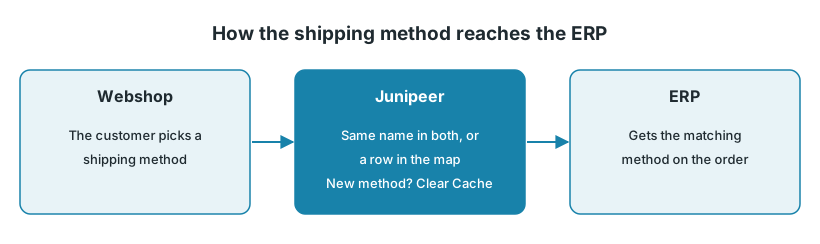
Every order carries the shipping method the customer chose. Junipeer finds the same method in your ERP, either by exact name or through a map you fill in. After you add or rename a method, click Clear Cache so it shows up in the map.
The settings are in Configure > Settings, in the order flow's settings, for example Export Orders to Fortnox. Click the ? next to a setting for details.
1. Match by name or with a map
By name: if a method has exactly the same name in the webshop and the ERP, turn on matching by name.
With a map: if the names differ, add one row per method, with the webshop's method on the left and the ERP's method on the right.
ERP | Match by name | Map | If nothing matches |
|---|---|---|---|
Fortnox | Match shipping methods by name | Map Shipping methods | Default Shipping Method is used |
Business Central | Match shipping methods by name | Map Shipping methods | No fallback setting |
Specter | Match Shipping methods by Name | Map Shipping methods (by CODE), or Map Shipping methods (by NAME) when matching by name | The webshop's value is used |
How to fill in the map:
Left side: type the method exactly as the webshop sends it, with the same spelling and the same upper and lower case. A row that doesn't match is skipped without an error. To see what the webshop sends, open the order on the Entities page and look at its raw data.
Right side: for Fortnox and Business Central, pick the method from the list fetched from the ERP. For Specter, type the delivery method as it is set up in Specter (Inställningar → Leveranssätt).
The shipping fee is separate from the shipping method. Many integrations add it as its own order row, with its own article number, set in the same order flow's settings.
2. You added or renamed a shipping method
For Fortnox and Business Central, the list on the right side of the map is kept in a cache. A new method doesn't show up until you clear it.
Create or rename the method in the ERP first.
In Junipeer, open Configure > Settings and click Clear Cache at the top of the page.
Reload the page and open the map. The new method is now in the list.
Add or update the row. If the webshop's name changed, update the left side too.
Still not there? Log out, log in again and clear the cache once more.
Good to know:
Clearing the cache is safe. It changes no settings.
A changed map only affects orders sent from then on.
Don't delete a method in Fortnox that is still set on a customer. Orders for that customer then fail with "Kunde inte hämta/hitta leveranssätt". See the Error codes reference.
3. What goes back to the webshop when an order ships
Business Central → Shopify. The shipment flow sends the tracking number only, without a carrier or a tracking link. Shopify may then show no carrier, and the tracking number may not be clickable. Sending the carrier needs a field in Business Central that holds it, so contact support if you need this. Also contact support if your customers don't get Shopify's shipping confirmation email.
Sendify → Centra. The flow Export Shipments to Centra has three settings:
Tracking Value Field: send the Full Tracking Link (default) or the Sendify Shipment ID.
Shipping Method Field: send the Carrier Name (default) or the Carrier Product Name.
Send Shipment E-mail: whether Centra emails the customer about the shipment.
See Centra orders and shipments.
4. Orders without a shipping method
Junipeer can only match what the order carries. If an order arrives without a shipping method, no map can fix it.
Open the order on the Entities page and check whether the shipping method is in the data Junipeer received.
If it's missing there, fix it in the webshop or in the checkout or shipping app that should set it.
Some checkout and shipping apps add their data a few seconds after the order is created. If orders are picked up before that, contact support.
When to contact support
Contact support@junipeer.io if a new method still doesn't show up after clearing the cache, if orders get the wrong method although the map looks right, or if you need the carrier sent to the webshop. Include the order number and the method you expected.